
SEO with WordPress is really easy thanks to wonderful search engine optimization plugins of the free and paid variety that makes optimizing content a walk in the park. I am using the free RankMath plugin that outwits the free Yoast SEO plugin.
RankMath Vs Yoast SEO
When I started off, I used the free Yoast SEO plugin. It offered very limited features in its free version and did not meet my expectations. All the goodies were packed into the paid premium version. I then chanced upon the free RankMath plugin. It has so many amazing features for a free plugin, and the best part is it does the heavy lifting without you having to break a sweat.
Optimize Your WordPress Site Using RankMath
This is a demo about setting up RankMath and optimizing a WordPress blog post for Google and Bing. When I say optimize, I mean on page optimization of the post and other crucial seo factors like sitemaps, canonicalization, titles and meta etc. I hope this proves to be a useful guide in optimizing the on page factors using RankMath
Once we walk through the setup, I am optimizing this very post using RankMath plugin. Right before the end of this post, along with explanations, I enclose screenshots showing the optimization results for this blog post using Rank Math.
Free Yoast SEO – Pruned Down Version
Sitemap Submission
Initially, I used the free Yoast SEO plugin. It is a very basic thinned down version. I had great success with it to generate sitemaps and submit it to the search engine consoles, namely Google Webmasters and Bing Webmasters. Yoast virtually did the setup by itself with me having to make sure there were no errors or warning messages.
Minimal On Page Optimization Factors
The on page optimization factors were limited to Title and Meta Description for a blog post. I could mark content as pillar post where applicable.
Most of the key features were available in the premium paid version of Yoast SEO plugin. You can optimize for only 1 keyword phrase in the free version. There was a readability check. You did not have to know about robots.txt and other related technical stuff that are important for search engine bots.
Click to find a detailed comparison between free and premium versions of Yoast SEO
Setting Up RankMath
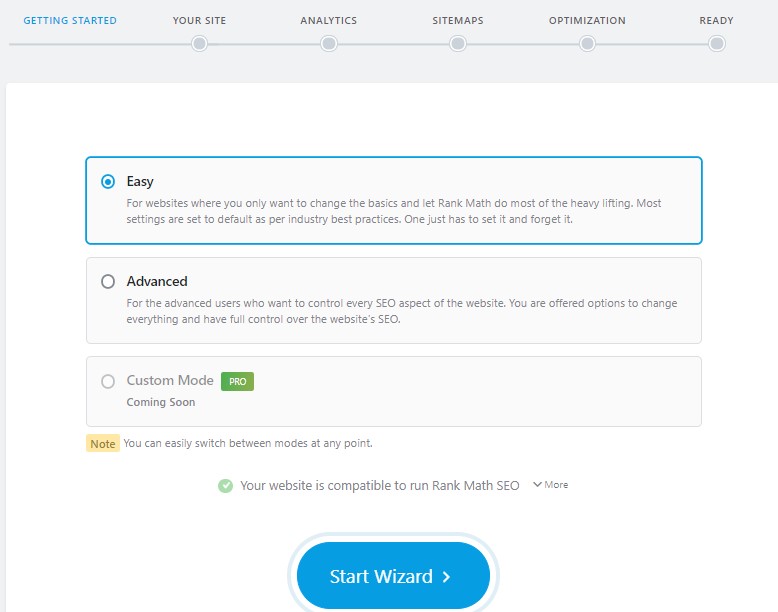
Once you have downloaded and installed the RankMath plugin, you can run the Setup Wizard. You start with the Getting Started screen.
Getting Started
Choose the Easy mode where RankMath takes care of complex optimizations and you have to only change the basic settings. The Advanced mode is for professional SEOs who can tweak settings to their heart’s content. We are looking at the free version that packs a punch. I am not going into the Custom Mode which is a PRO feature.
Let’s get started. Click the Start Wizard button. This leads to the Your Site screen
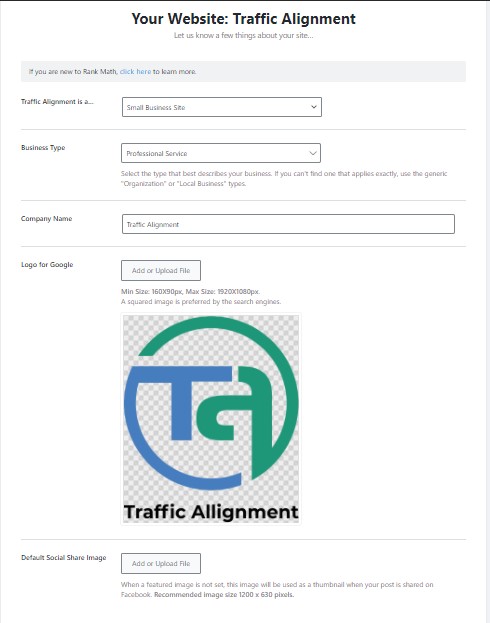
Your Site
On this page, fill in details of your business. Upload a logo and a default social share image where applicable. Click Save and Continue to reach the Analytics screen.
Analytics
Click Connect Google Services, namely the Google Search Console and Google Analytics accounts that you have set up for your site. You can get all the information from various Google sources under one roof.
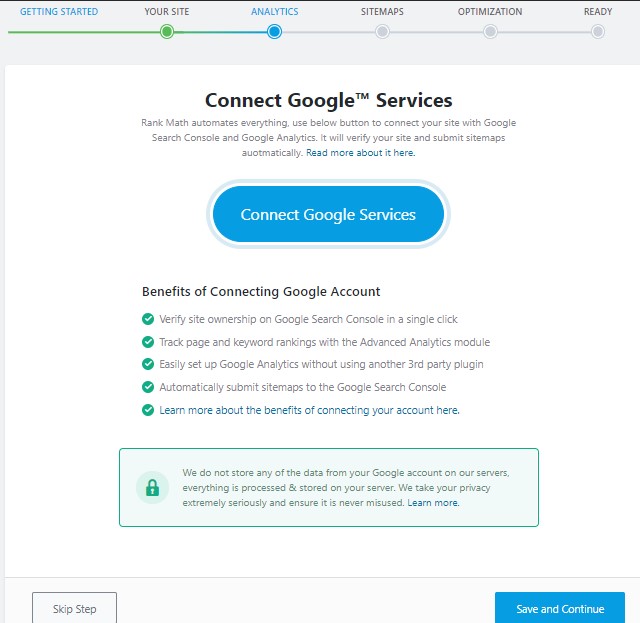
If you do not wish to connect, you can always login to these accounts individually and check them out. I have the WP Monster Insights Plugin set up for my blog. I did not use RankMath’s Analytics module. You can set up Google Analytics tracking via this module.
Rank Math assures that they do not store any of your Google account data on their servers. Click Save and Continue to reach the Sitemaps screen.
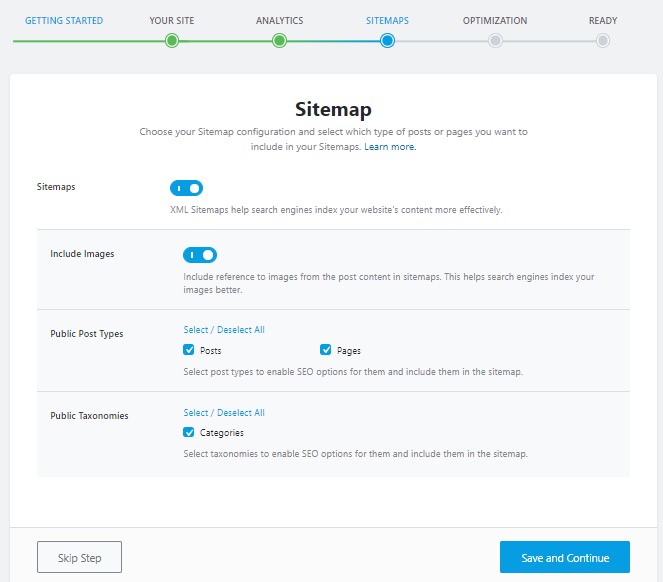
Sitemaps
This is where you turn on or off the submission of sitemaps to include or exclude images, sitemaps for pages and/or posts and Categories sitemaps. You can check/uncheck your preferences. Click Save and Continue to go to the Optimization screen.
Optimization
This involves optimizing some important seo factors. You may have created categories and tags that you intended to use but did not. These get indexed as archives by the search engines. You don’t want the search engine crawlers to index such empty categories by turning Nonindex empty archives setting on.
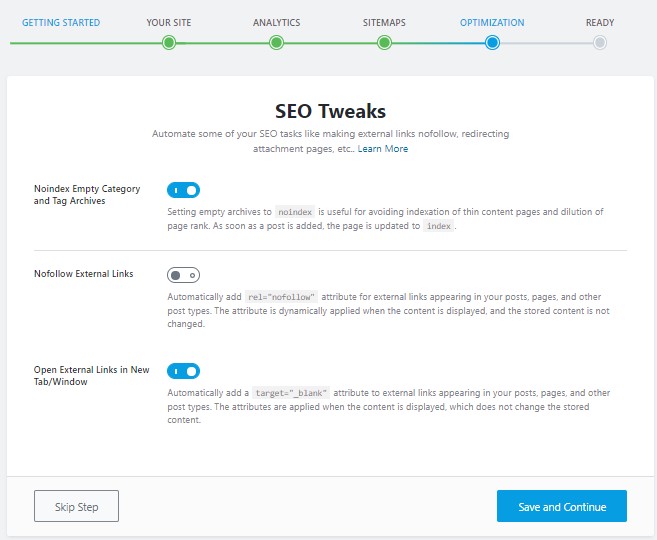
It is always good practice to link to authoritative external sources as references both for the benefit of your readers and as source of your research. I have turned the Nofollow External Links setting off. If you feel you want to nofollow a link, then you can make the link nofollow using WordPress Insert/Edit Link feature.
It is good practice to open both internal and external links on your blog in new tabs. I have left the Open External Links in the New tab/window setting on. Click Save and Continue
Ready
You see the message – Your site is ready! You can turn on the option to auto update the plugin.
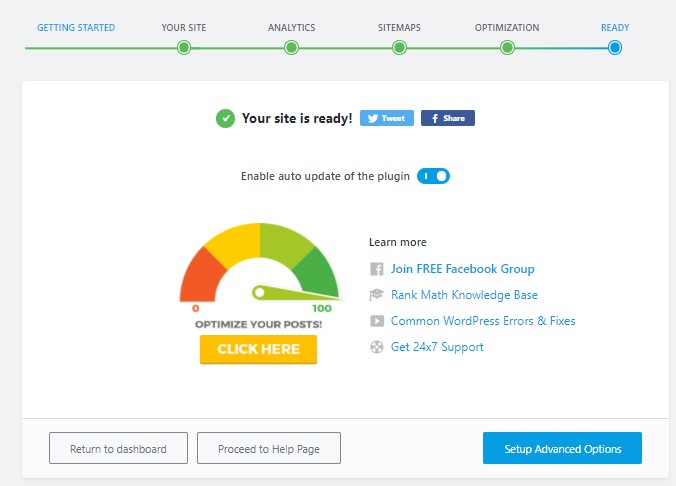
Next click Setup Advanced Options
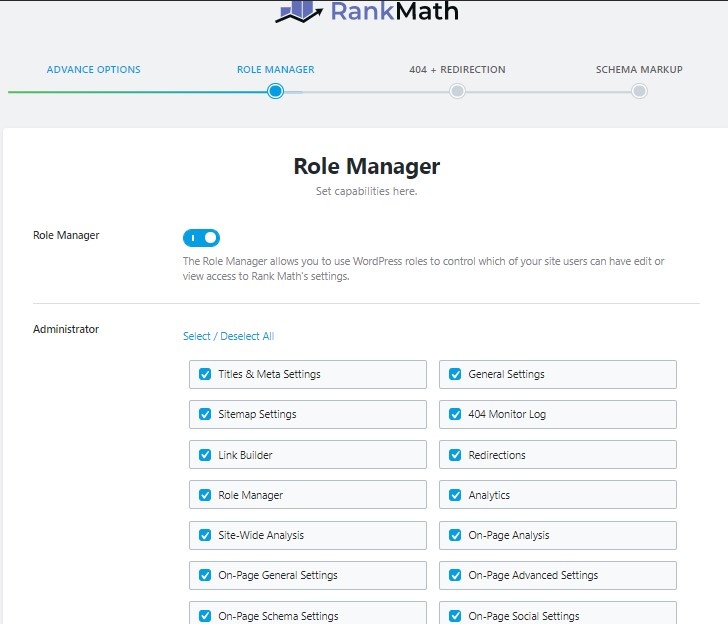
Role Manager
The different roles are Administrator, Editor, Author, Contributor and Subscriber. You can check/uncheck settings for each role based on the roles you want members of your team to assume. Or just leave the default values as is and click Save and Continue
404 + Redirection
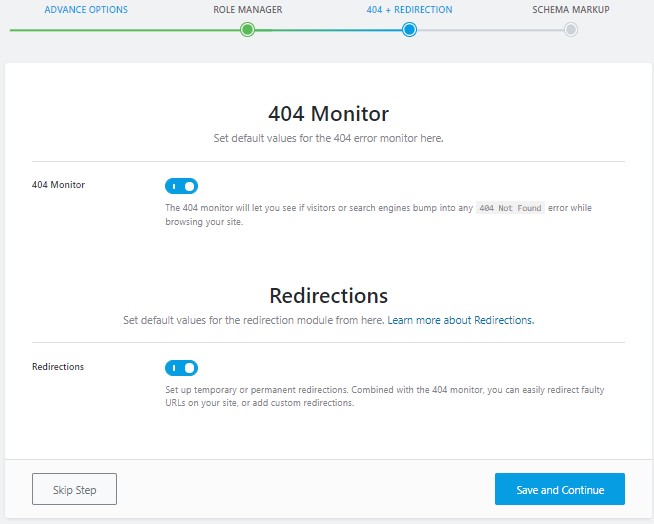
The 404 monitor shows you the pages that return the 404 Page not found error, that both human visitors and search engine bots encounter. Checking this section helps you resolve such errors.
Redirection is a useful way to forward a non-existent or non-resolvable page to an existing well defined URL by means of a permanent 301 redirect. A 301 redirect also passes on any existing link juice the erroneous pages had, to the new URL they are redirected to.
Do Not Use 302 Temporary Redirect:
Do not use a temporary 302 redirect as it is frowned upon by the search engines. In real life, it is like giving your opposite house address to a friend who is visiting you for the first time.
Your friend finds that you do not live there and the person living there redirects your friend to your house. Imagine how happy your friend would be with you! That friend is the search engine bot in this case. Click Save and Continue.
Schema Markup
Schema markup is code you put on your page to help search engines quickly get a good idea of what your page is about. Google, Bing and Yandex (to name a few) were involved in a project called Schema.org since 2011, to standardize the markups for different types (product, faq, local business, review, video, article etc).
It also enables search engines to display enhanced listings on the search engine results pages. This enhanced listing is called rich snippet.
For more information on how to use Google tools for creating schema markup, visit my blog post titled On Page Optimization
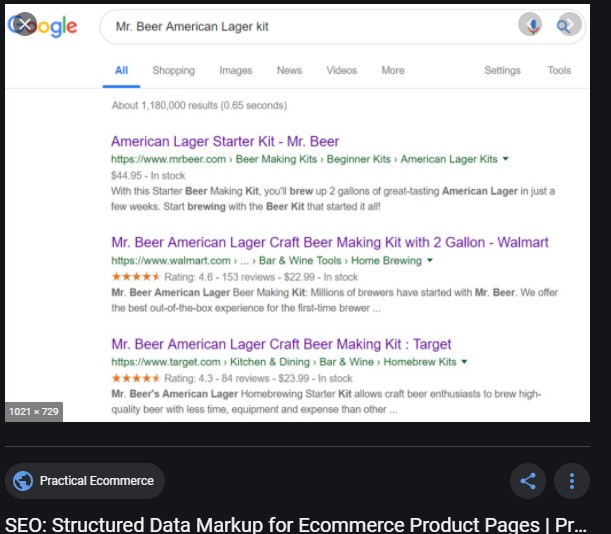
A search on Google Images for product schema markup example gives the following result. You can see the enhanced listing for Mr. Beer American Lager Craft Beer with ratings and reviews.
My site is a digital marketing blog. I have chosen an article schema. You can choose your preferred value from the Schema Type for Posts dropdown.
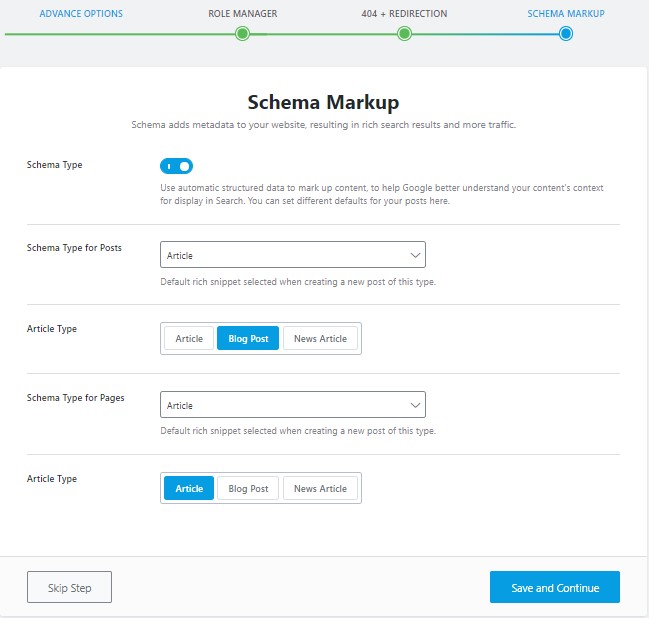
Click Save and Continue
RankMath Modules
From the WordPress dashboard, as shown in the screenshot below, there are some other useful modules that can be set up in the free version of the plugin. There are out of the box integrations available with other popular plugins.
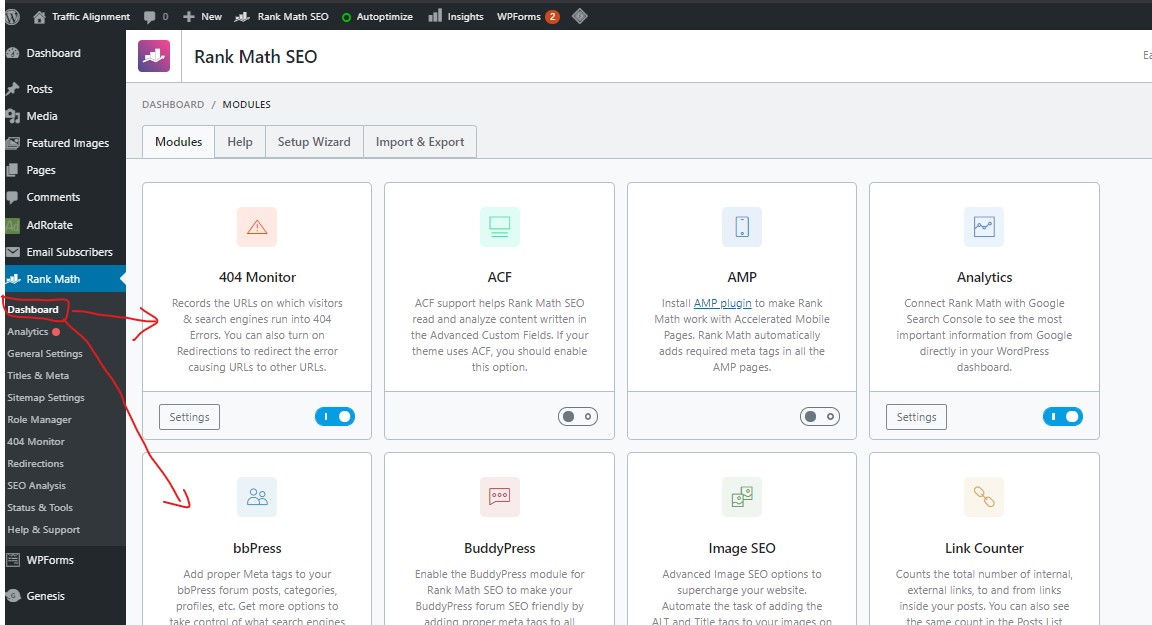
For the best part, most of these modules were auto configured. I did not make too many changes. These modules cover most of the SEO settings possible that is suitable to any kind of site in any industry.
There are integrations available with Advanced Custom Fields (ACF) plugin, Google’s Accelerated Mobile Pages (AMP), BBPress and Buddypress forum plugins. I have not had the need to use these integrations for my site.
I will discuss below the settings for the modules I have used.
Titles And Meta
The Global Meta dictates the title and meta tags for all the pages on the site. We want all the pages on our site to be crawled (the ones excluded can be via robots.txt file or checking No index via RankMath SEO setting when editing a specific page or post).
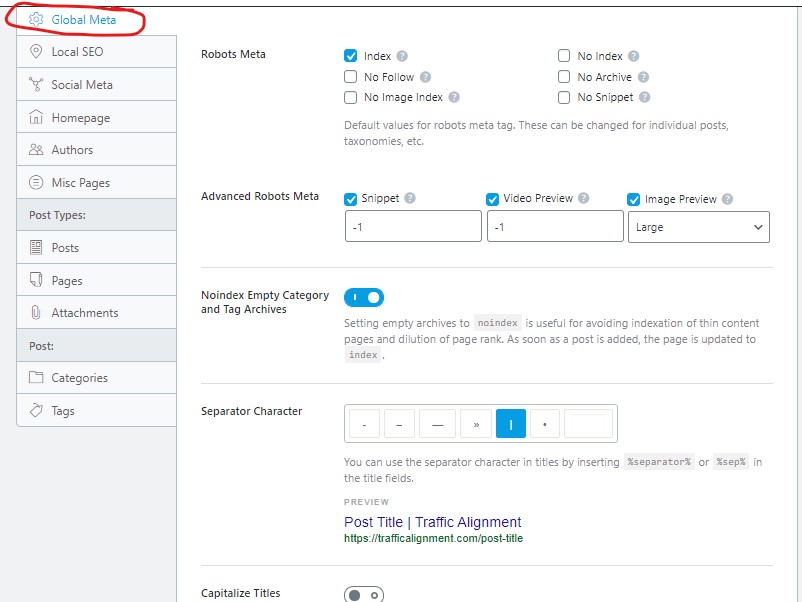
The Robots Meta is a clear directive to the search engine crawlers as to whether they are allowed to index a page or not, to follow a page or not etc. The same goes for images as well. Hovering over the tiny question mark explains what each feature stands for.
The only value I have changed here is the separator between the Post Title and my site name, which is a pipe (|) character in this case.
Image SEO Module
I have turned off both the settings in this module. I upload images manually and have custom names for my alt text. You can turn them on to add missing alt and missing title attributes.
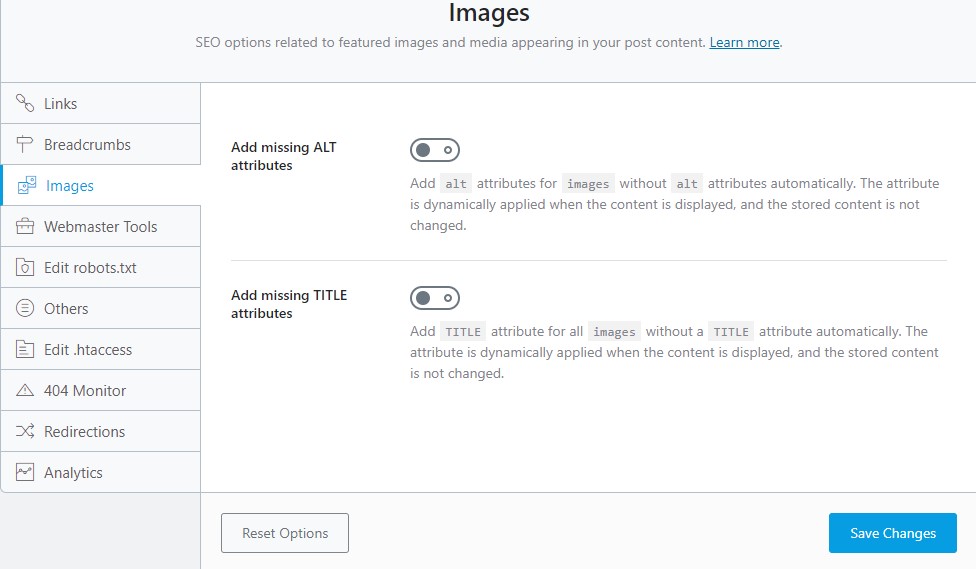
The alt and title attributes of the img tag are for search engine bots and users who are visually handicapped to help them understand what the images represent.
NOTE: If you were to set both the above settings to On, then RankMath will name the alt tag of your images in a blog post as seo-with-wordpress-1, seo-with-wordpress-2 and so on (as the title of this post is SEO with WordPress)
Link Counter And Local SEO & Knowledge Graph Modules
There are no settings for the Link Counter Module
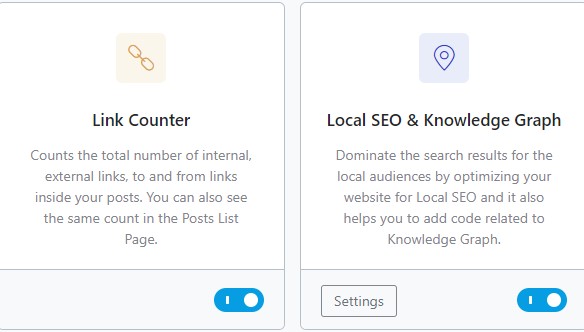
I do not use Local SEO. But for businesses that need a strong local presence on Google, this module can be a huge help. The fields are pretty straightforward, like your business address, website URL, working hours etc.
SEO Analysis
This is the best feature of this SEO plugin where RankMath analyzes your website and its content using 70+ yes a huge 70 plus different tests. I have done my best so far and need to do some more to improve the score. Also, I have not linked my Google Webmasters console and Google Analytics. This needs to be factored in.
The SEO Analysis Score

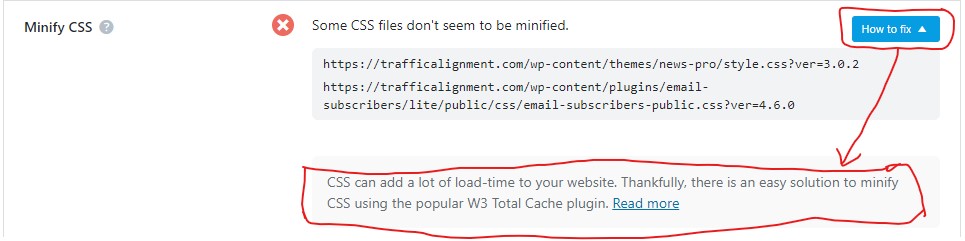
Enclosed is a sample screenshots showing some important features, especially technical areas, showing the problem and also showing a button How to Fix, which is super helpful.
The SEO Technical Error And How to Fix
Sitemap Module
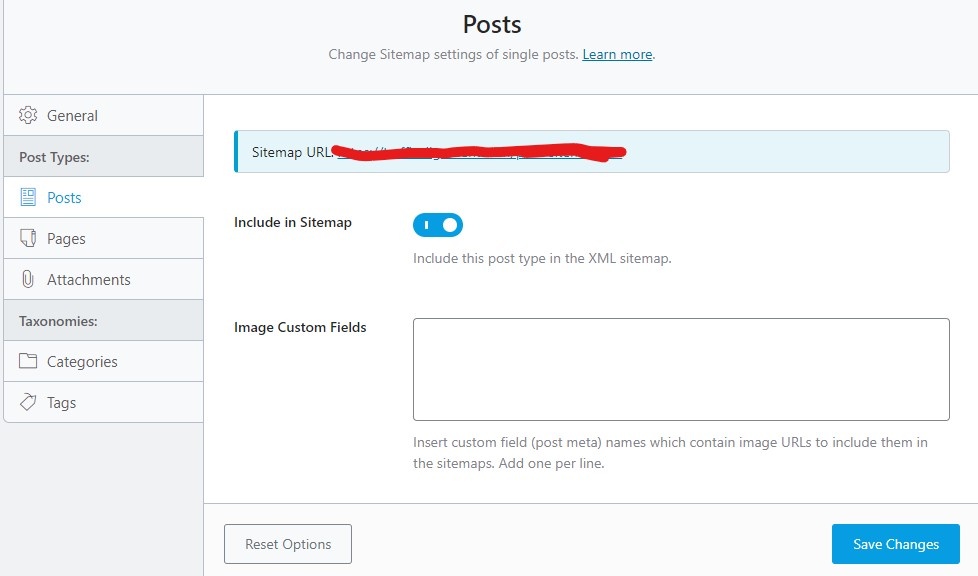
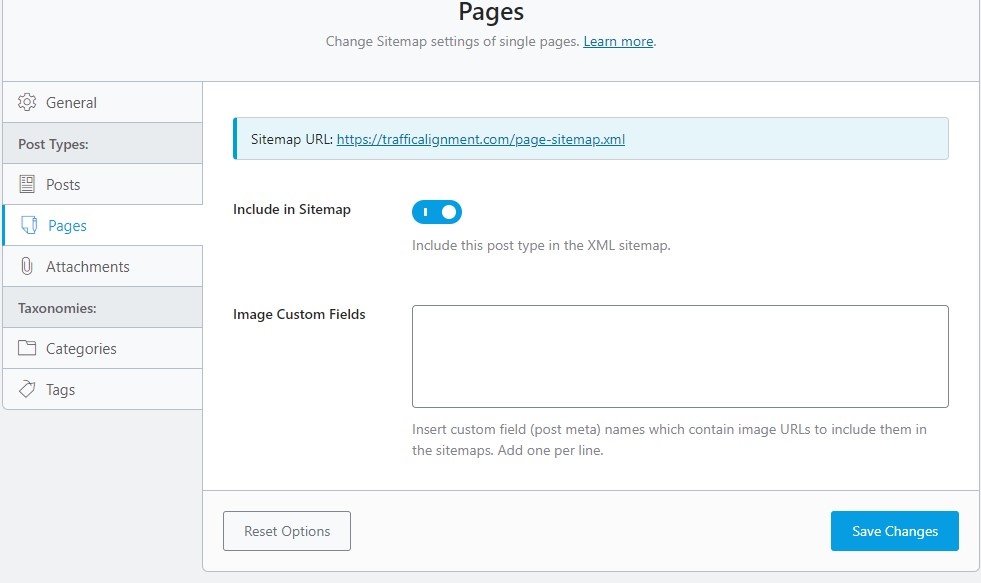
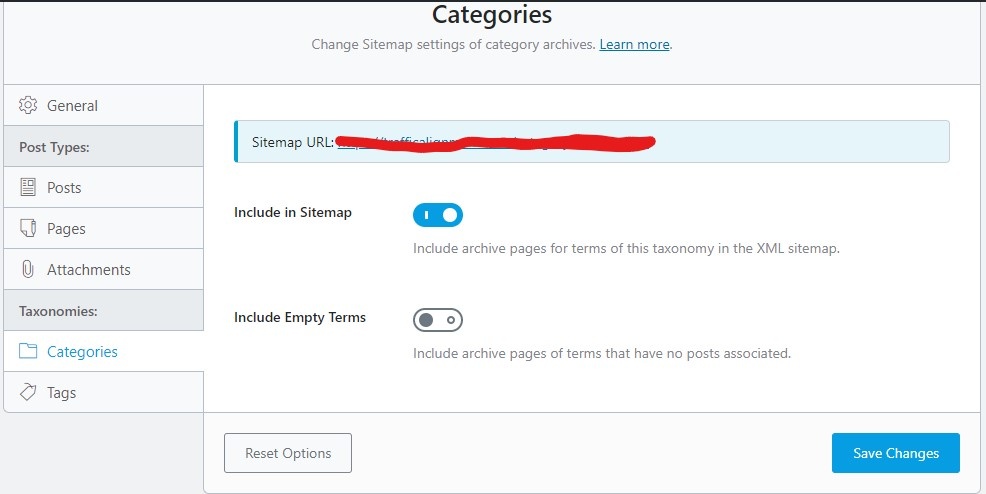
It is pretty self explanatory. RankMath generates the sitemap URL as an xml file (which I have erased in this case). You submit this sitemap URL within Google Webmasters and Bing Webmasters.
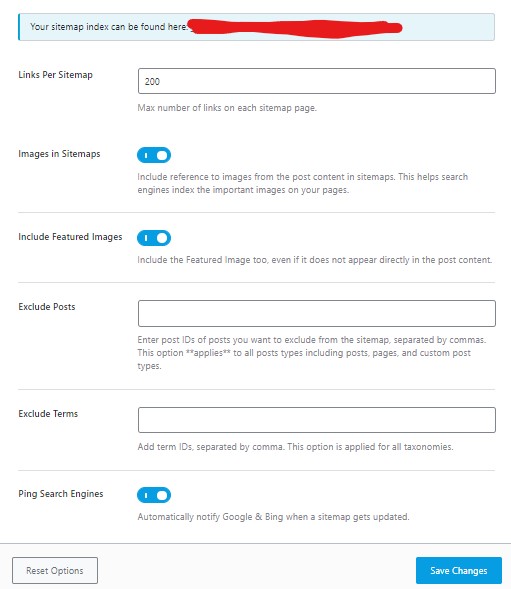
Sitemaps are there to help search engine bots crawl your site quickly and effectively. RankMath allows you to submit separate sitemaps for posts, pages, attachments, categories and tags. Limiting each sitemap to 200 is a best practice as it is the right amount of food for the spiders to consume effectively.
Posts Sitemap
Pages Sitemap
Categories Sitemap
I have not used attachments and tags as part of the sitemap submission of my site.
There is also a Google Web Stories integration available, along with a WooCommerce module for optimizing WooCommerce pages. This allows you to add metadata and product schema that appear as your site’s enhanced listings on the Google SERPs.
Importing Yoast SEO Settings Into RankMath
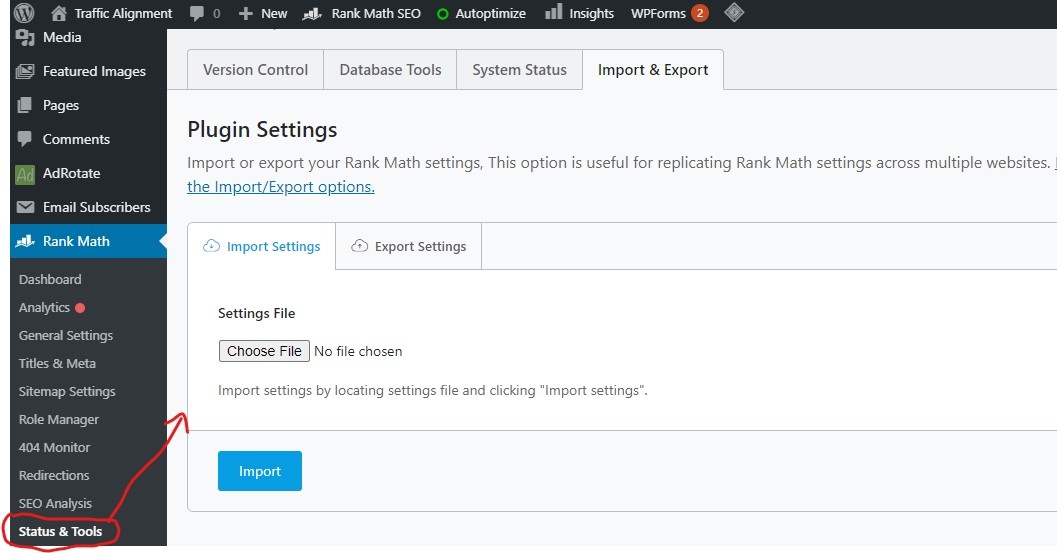
If you are using the free Yoast SEO plugin, don’t despair. I had the same issue. There is a readily available feature within RankMath called Import and Export.
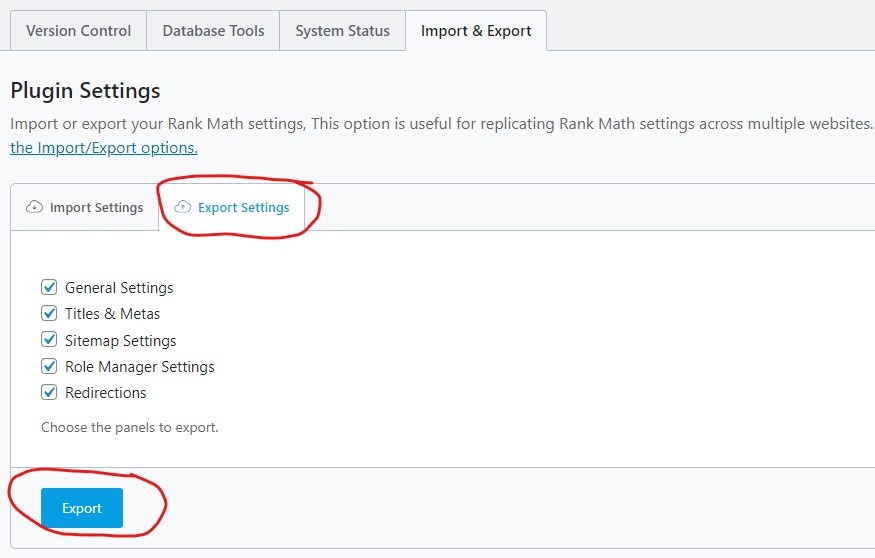
Go to WordPress Menu > RankMath > Status & Tools to land on the page shown in the following screenshot
Export Settings
If you are using RankMath already and are happy with the optimized set up, you can easily export it to replicate on other new websites you own and operate.
Click Export Settings tab and choose the items you want to export. Click Export button. You can save the settings as a text file. Then use Import Settings tab to import it into your new WordPress websites.
Import Yoast SEO Settings Into RankMath
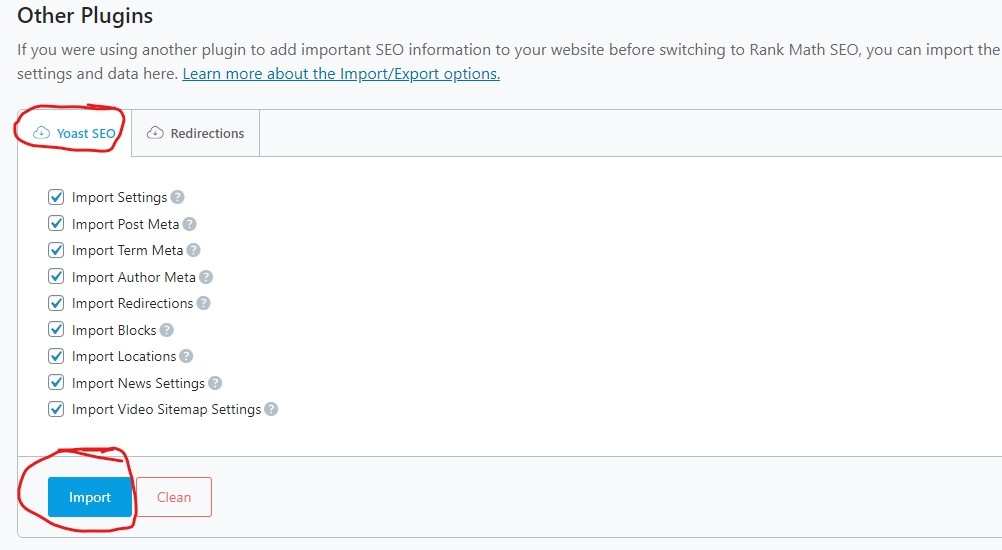
Scroll down the same page and under Other Plugins section, you can see the tab Yoast SEO. Check all the features you want to import from Yoast into RankMath. Click Import and you are done. It can’t be any simpler.
NOTE: When I imported the Yoast SEO settings into RankMath, all the posts that had been optimized using the Yoast plugin remained unchanged. RankMath kicks in only from the point of time you start a new post and use RankMath for content optimization. It does not take effect retrospectively.
Results Of Optimizing This Blog Post Using RankMath
Below are the results for the optimization of this blog post using RankMath.
RankMath SEO – General Tab
At the bottom of the post in edit mode, you can see the RankMath SEO plugin’s General section.
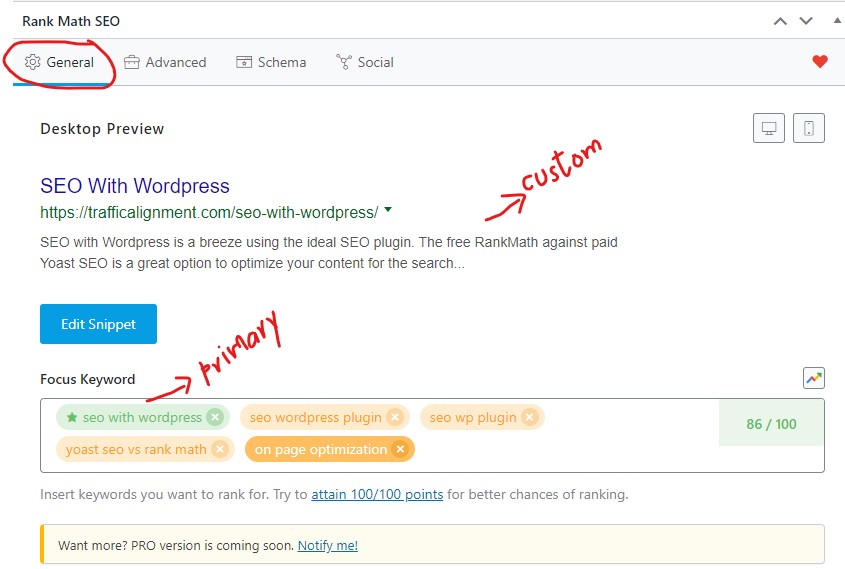
I created the title. I also wrote a custom meta description for this blog post.
The focus keyword is your main keyword phrase around which the content is centered. In this case, the first keyword, seo with wordpress is the focus keyword. RankMath gives the option to add another four keywords. When you start typing, RankMath shows keywords that have their source in Google. I chose 4 related keywords that made sense in the context of my blog post.
Continuing with the General section, enclosed is another screenshot showing the results of my work provided by RankMath.
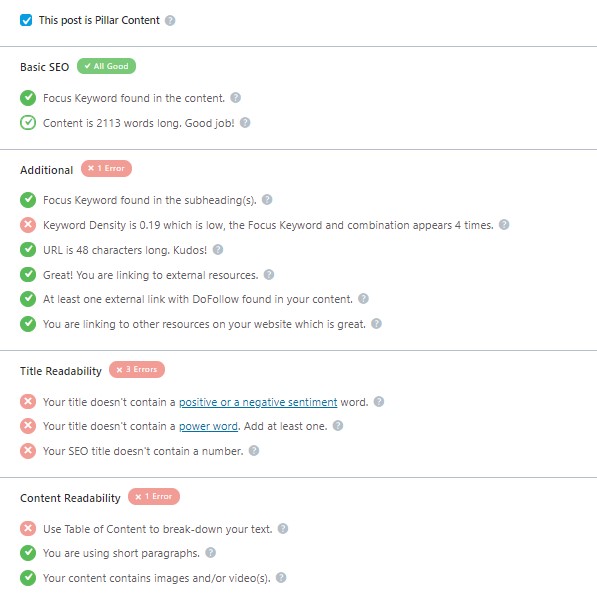
I have checked the box beside This post is Pillar Content.
Basic SEO results are good. The Additional section points an issue – keyword density is low. I don’t bother too much about it. Keyword is old school keyword stuffing SEO. As long as the copy flows smoothly and naturally, there is nothing to worry about.
I have some issues under Title Readability. These are both seo and copywriting related issues. You can hover over the tiny question marks besides each result to see what the issue is. It is pretty straightforward. Again, I don’t pay much attention to it.
Content Readability section points out lack of table of contents as this post is lengthy. I have overlooked that as well.
RankMath SEO – Advanced Tab
The Advanced tab shows the settings for robots meta, advanced robots meta and canonical URL. The first two settings are as shown at the beginning of this post when we looked at the Global Meta settings under Titles and Meta module.
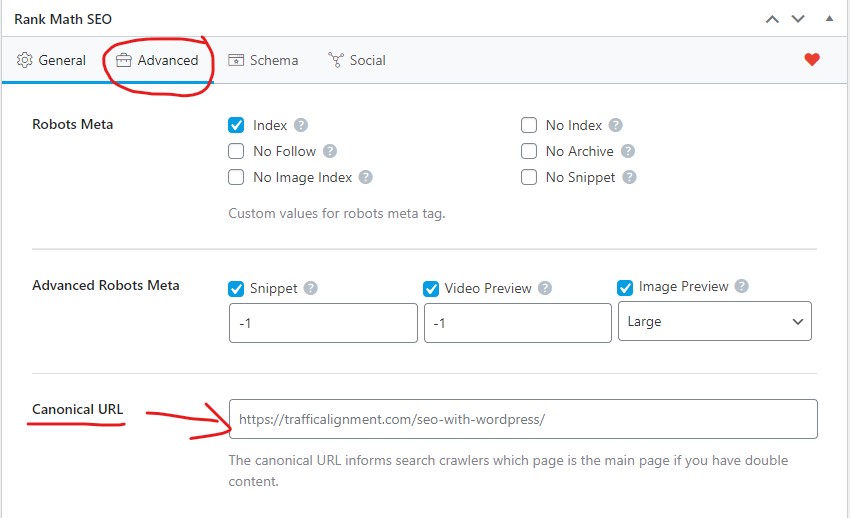
The Canonical URL is the most representative URL at which a piece of content such as this blog post resides. This is most useful when you have potential duplicate content.
As an example, if keyword cannibalization occurred whereby I wrote a post, say, SEO with WordPress using Yoast SEO, then Google will be in a quandary as to which of the two posts to show to the users when they search for the keyword phrase seo with wordpress
If for example, the Yoast SEO post lives at the URL, https://trafficalignment.com/seo-with-wordpress-yoast-seo, as I am now more interested in showing my readers the huge extras available in the free version of RankMath plugin, I would edit the Yoast SEO plugin post by going to advanced tab of RankMath SEO plugin and in the box for Canonical URL, I would type in https://trafficalignment.com/seo-with-wordpress/
This tells Google that even though the content on Optimzing WordPress with Yoast SEO is a separate article, the most representative content on Traffic Alignment site is this blog post. Google will have a clear mandate to show this blog post in the search results pages in response to user search queries on seo with wordpress.
In the case of categories (which I have on this site), RankMath automatically changes the canonical URLs for paginated pages of SEO Category to the first page of the Category pages. This avoids massive content duplication and keyword cannibalization (when tags are used).
RankMath SEO – Schema Tab
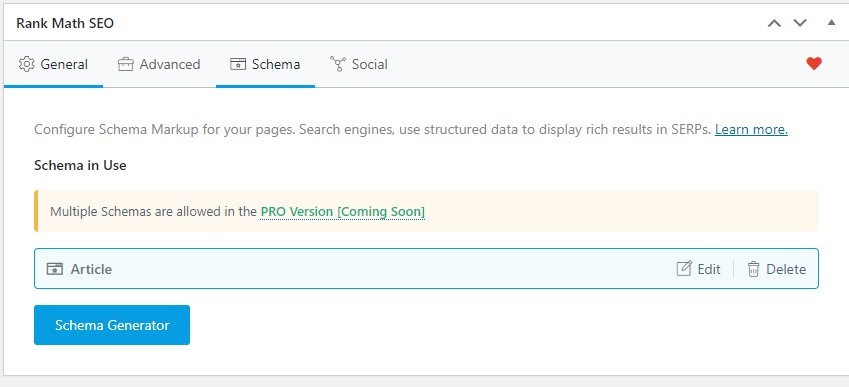
As explained above, in the Schema module settings, I can clearly see that my schema is reflected as an article. If I did product reviews on this site all the time, I would much rather have a product schema instead.
RankMath SEO – Social Tab
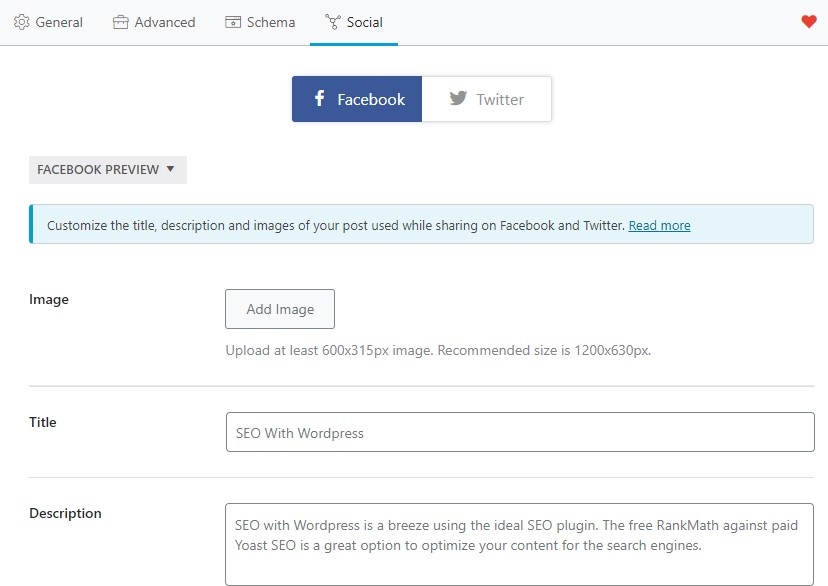
Here, I can adjust the content to be posted to either Facebook or Twitter. You can make the edits and submit to these social media networks.
RankMath SEO – My Overall Score
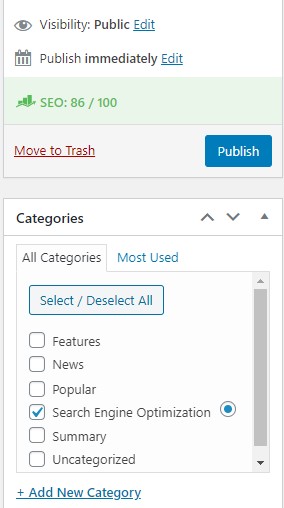
My final score from RankMath is 86. I could have tweaked it a bit to get more. But I am leaving it at this.
Conclusion
RankMath makes life easy when it comes to optimizing WordPress SEO settings. Setting it up is a breeze. It autoconfigures lot of options. If you are s SEO geek, you can use the advanced setup features. You can also wait for the PRO version that is due for release any time. For a thorough working of RankMath, their documentation is excellent https://rankmath.com/kb/
Here at Traffic Alignment, we help small businesses with their content marketing efforts to get better visibility on the search engines to promote their services/products. Call us for a quote today!
Related Posts











Leave a Reply